

In order to use an image on World Anvil, we recommend you upload it to your world first. Here's how!
Upload on the fly
To make your worldbuilding smoother, you can upload images from any page! Here's how:
- On the bottom right corner of the screen, you'll see a green plus button. Click it.
- To upload images, click the green pop-up box, or drag images to it. You can upload multiple images at once

- A new pop up will appear in the centre of your screen where you can change the name of the file, set it to public or private, and it's destination folder
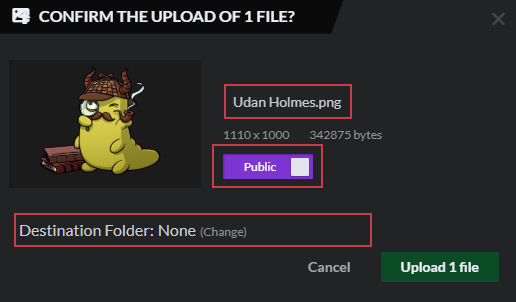
- If you upload multiple images, you will be able to set this for each image.
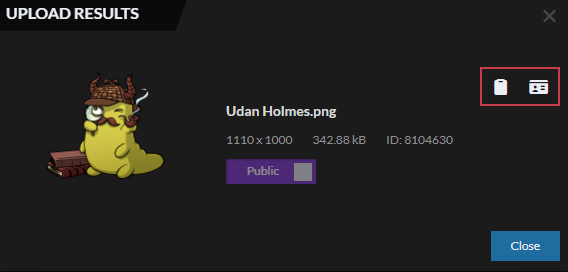
- After the image uploads, you will be able to use the embed buttons to copy the BBcode or image ID. Learn more about embeding images here..
If you're using the Visual Text Editor, you can simply drag and drop the image directly into your text from your device!
From the Images page
You can also upload images one by one from the Image manager. This is useful over the quick upload button because it lets you more easily change the image's name, description, and other details. Follow these steps:
- Click the Image icon on the sidebar to access the Image manager.
- Drag and drop any image anywhere on the image manager, or click the upload button at the bottom left to select an image from your device.
- The image will appear in the Image manager interface. Click it to edit the image details.
To upload an image straight into a folder, click on the folder and then upload it.